Modify an attribute of a VM
The actions available on a Numspot VM (Virtual Machine) depend on its current state:
- to modify the VM Type attribute (
Type,UserData,PerformanceandNestedVirtualization), you must stop the VM; - the other attributes can be modified when the VM is running or stopped.
Permissions
This action requires the following IAM (Identity and Access Management) permissions:
- compute.vm.update
- Console
- API
- Terraform
Modify the associated security groups
-
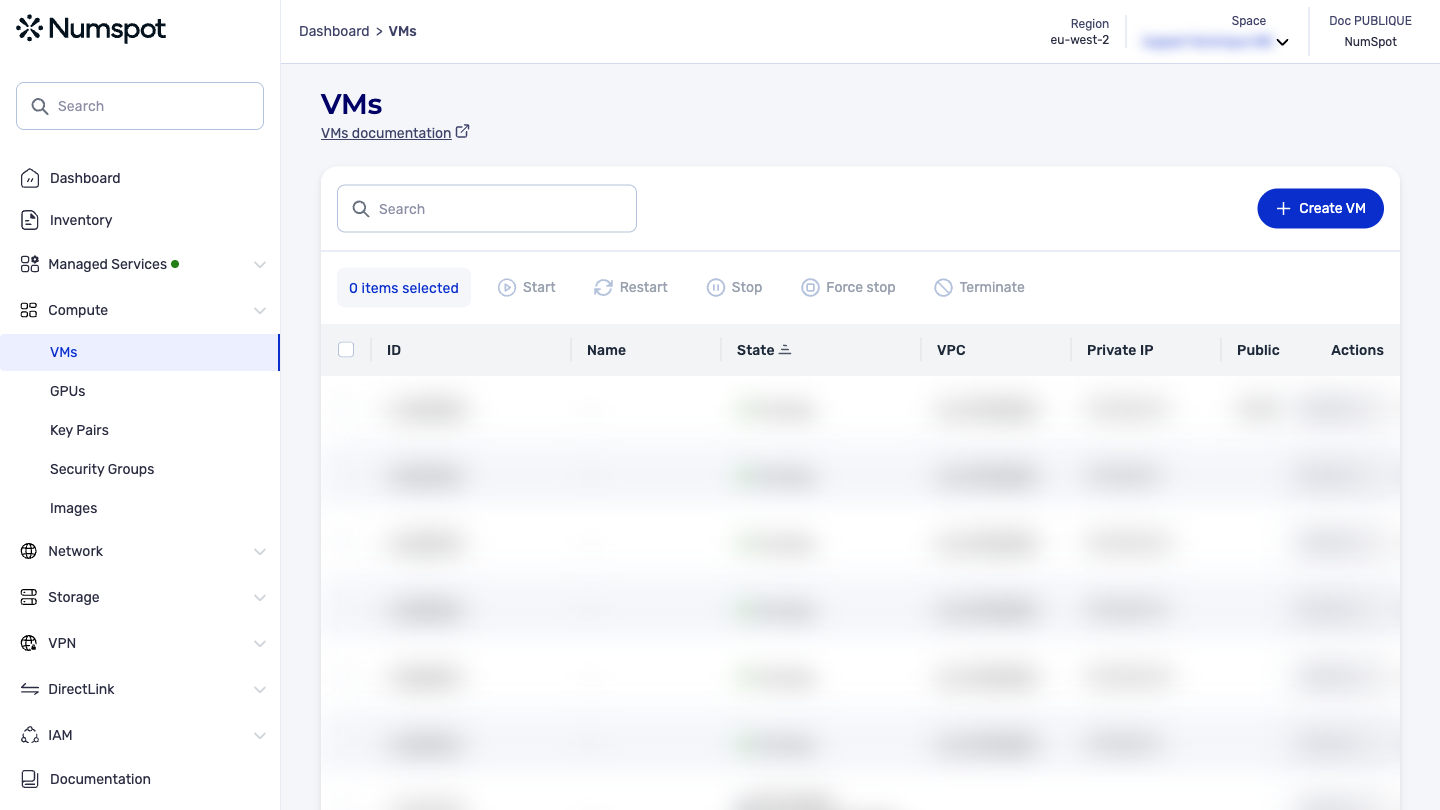
From the left-hand side menu, click Compute → VM to access the list of VM;
-
Select the VM and choose the Security groups action.
The "Update the security groups" dialog box appears;
-
Click in the field to display the list of security groups:
- in the list, select the security group or groups you want to associate with the VM;
- to dissociate a security group from a VM, deselect the name of the security group;
-
Click Update the security groups.
Modify the type of a VM
-
From the left-hand side menu, click Compute → VM to access the list of VM;
-
Select the VM and choose the Modify VM type action.
The "Update the type of the VM" dialog box appears. You have two options:
-
Select a preconfigured VM template: Numspot offers VM templates optimized for different use cases, such as compute, memory, standard and economy;
-
Custom VM: if you have specific needs that are not covered by the preconfigured templates, you can create a custom VM by selecting the "Custom" option.
Specify the following attributes for your VM:
- CPU generation: the generation of the processor;
- Performance: the performance indicator:
- Highest: maximum compute capacity on all the vCPU of the VM. This value is ideal for compute-intensive applications requiring stable performance throughout the life cycle of the VM;
- High: high compute capacity on all the vCPU of the VM. This value applies to most cases and offers performance that varies over time;
- Moderate: performance that varies significantly on all the vCPU of the VM. This value does not guarantee consistent performance, but is ideal for machines with low CPU demand;
- Number of vCPU: the number of vCores, up to 78;
- RAM (GiB): the amount of memory, up to 1024 GiB.
warningTo function correctly, Windows VM require at least a v5-generation processor, 2 vCores and 4 GiB of memory.
-
-
Click Submit.
Modify the behavior of the VM on shutdown
-
From the left-hand side menu, click Compute → VM to access the list of VM;
-
Select the VM and choose the Shutdown behavior action.
The "Update the shutdown behavior" dialog box appears;
-
In the list, select one of the following values:
- "Stop": when you shut down the VM, it stops;
- "Terminate": when you shut down the VM, it stops and is terminated;
- "Restart": when you shut down the VM, it stops and restarts automatically;
-
Click Update the shutdown behavior.
Modify the deletion protection
-
From the left-hand side menu, click Compute → VM to access the list of VM;
-
Select the VM and choose the Deletion protection action.
The "Update the deletion protection" dialog box appears;
-
Enable or disable the button:
- if it is enabled, you cannot delete the VM;
- if it is disabled, you can delete it with any interface;
-
Click Update the deletion protection.
The PUT /compute/spaces/{spaceId}/vms/{id} command modifies the attributes of a VM.
You must stop the VM before modifying the following attributes:
nestedVirtualization;performance;userData;type.
The Terraform documentation is available on the Numspot registry ↗.