First connection to the Numspot console
The first-connection steps are the same as when resetting your password.
A recovery link, together with a recovery code, are sent by email.
1. Prerequisites
To perform your first connection, make sure you have the following items:
- A valid email address (e.g.
user@domain.com) - A Numspot user account created for this email address.
- If required, contact your organization administrator so that they create your user account.
- The recovery link and the recovery code received by email.
- If required, contact your administrator, who will be able to resend an activation link (recovery link).
- A modern, up-to-date web browser (Chrome, Firefox, Edge, Safari).
2. Connection steps
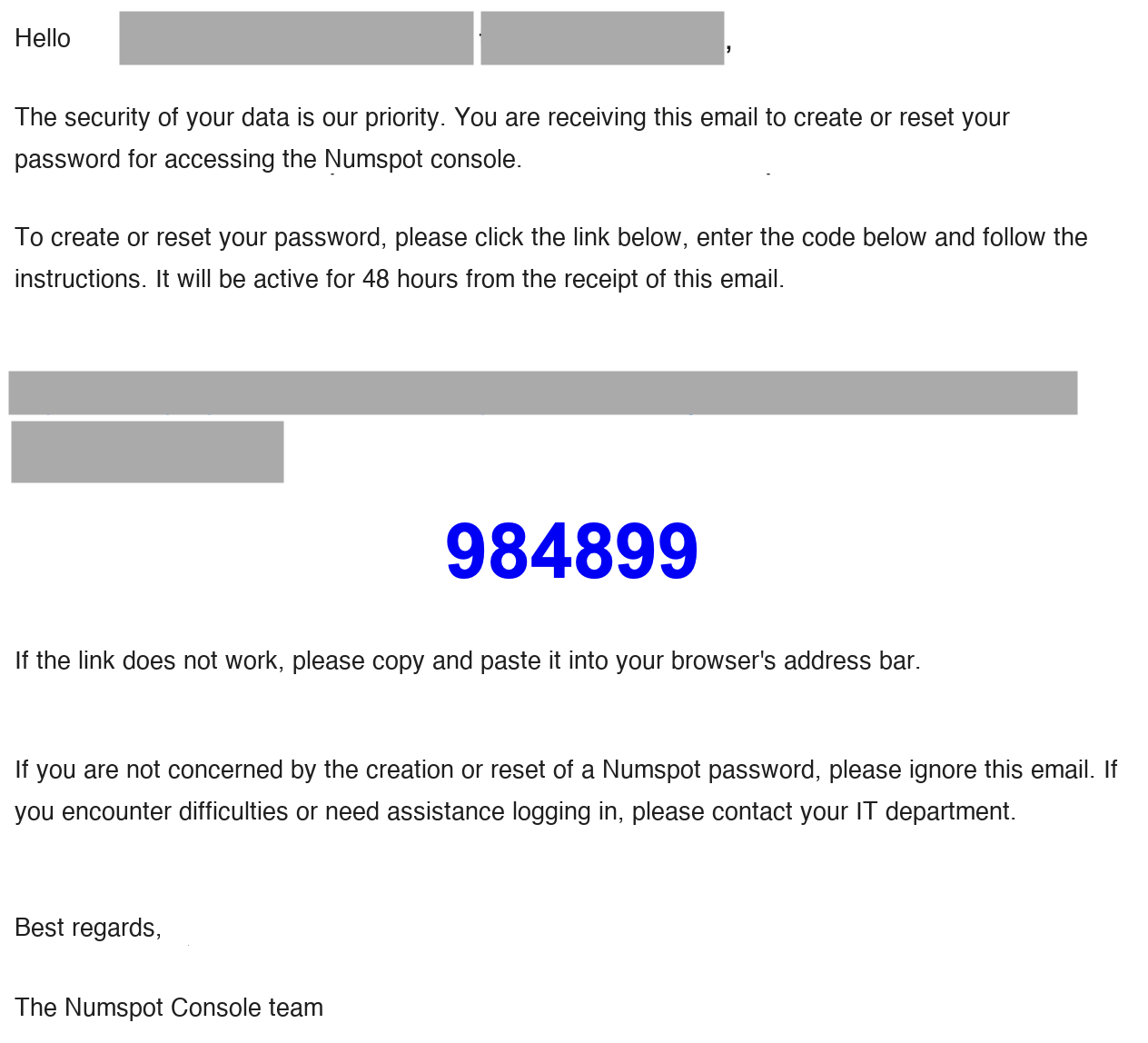
Step 1: Open the activation email
-
Check your mailbox at the registered address.
-
Look for an email with the subject: "Action required: creation or reset of your Numspot password".
-
-
Do not delete this email before the procedure is complete.
Warning:
- Check that the sender is indeed an official domain (e.g.
@numspot.com). - If you have not received the email, check your junk mail (spam) or ask your administrator to resend the link.
Step 2: Click on the recovery link
- In the email, click on the recovery link or copy and paste it into your browser.
- You are redirected to a confirmation page.
Note: Why this link?
- It is unique and temporary (valid for 48h).
- It confirms that the email address belongs to you.
Step 3: Enter the recovery code
- On the activation page, enter the recovery code included in the email sent following your administrator's actions (e.g.
984899). 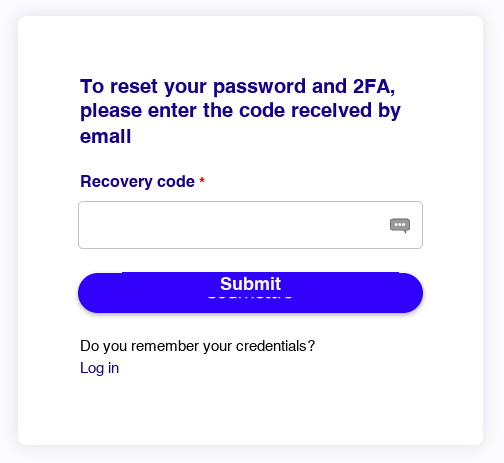
- Click on Submit.
Step 4: Set a password
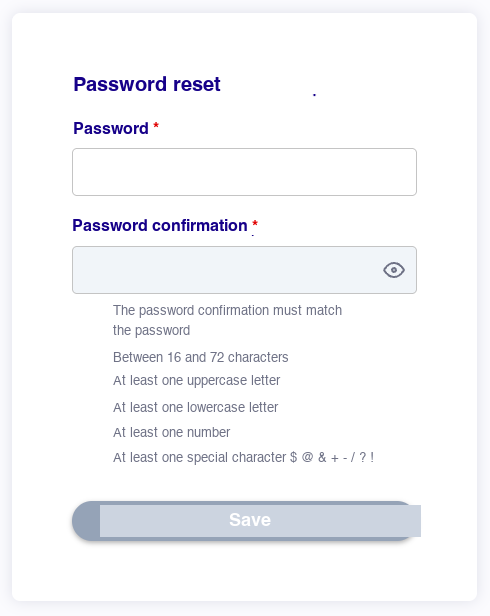
- Enter a new password that complies with the rules:
- 16 characters minimum and 72 characters maximum.
- At least 1 uppercase letter, 1 lowercase letter, 1 number, 1 special character.
- Confirm the password by entering it again.
Step 5: Configure multi-factor authentication (MFA) via TOTP
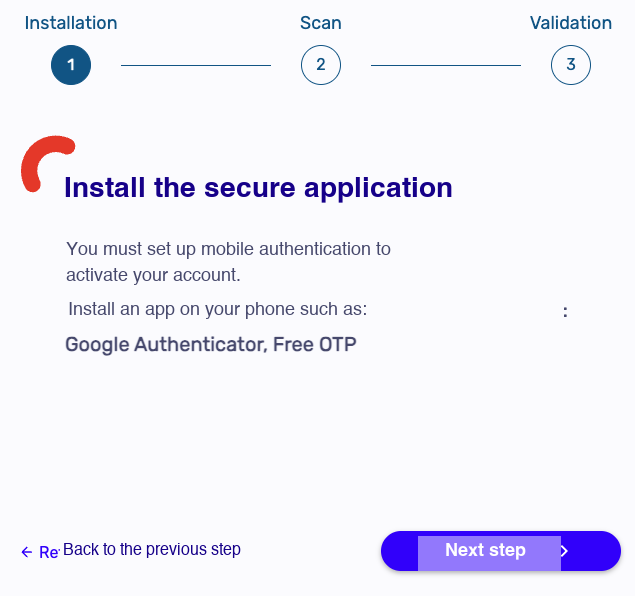
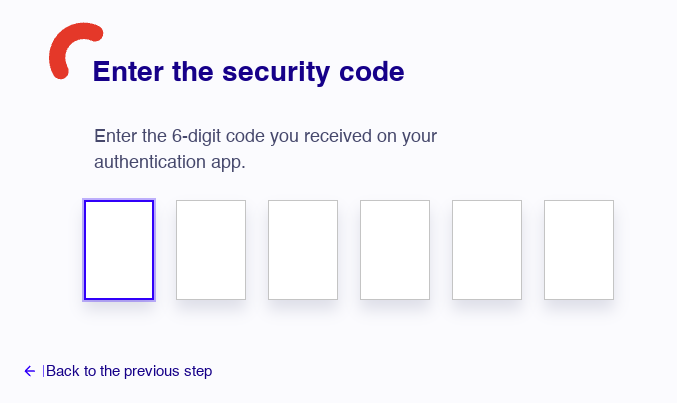
- Choose a TOTP (Time-based One-Time Password) application to use multi-factor authentication (MFA):
- Recommended authentication applications: Google Authenticator, FreeOTP, Microsoft Authenticator.
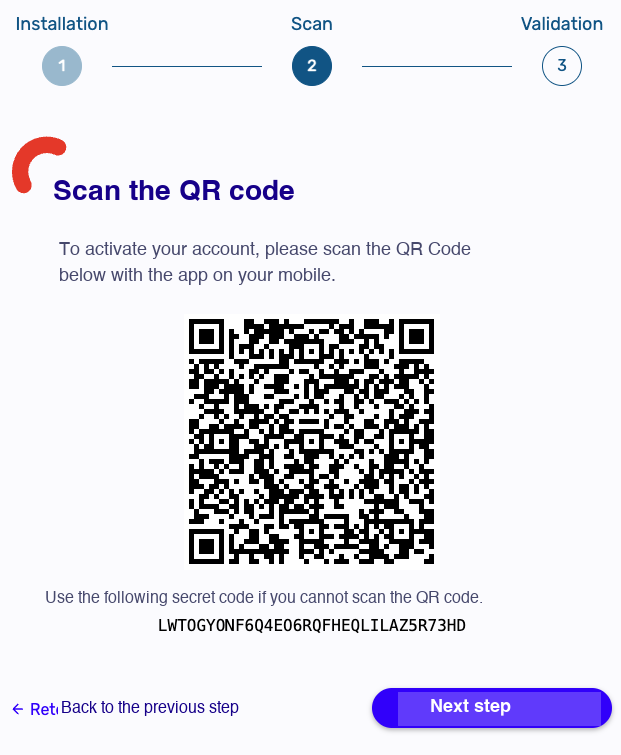
- Scan the QR code or enter the secret key manually.
Important:
- Without MFA, access is blocked after 3 failed attempts.
Step 6: Access the portal
- You are redirected to the Numspot console portal.
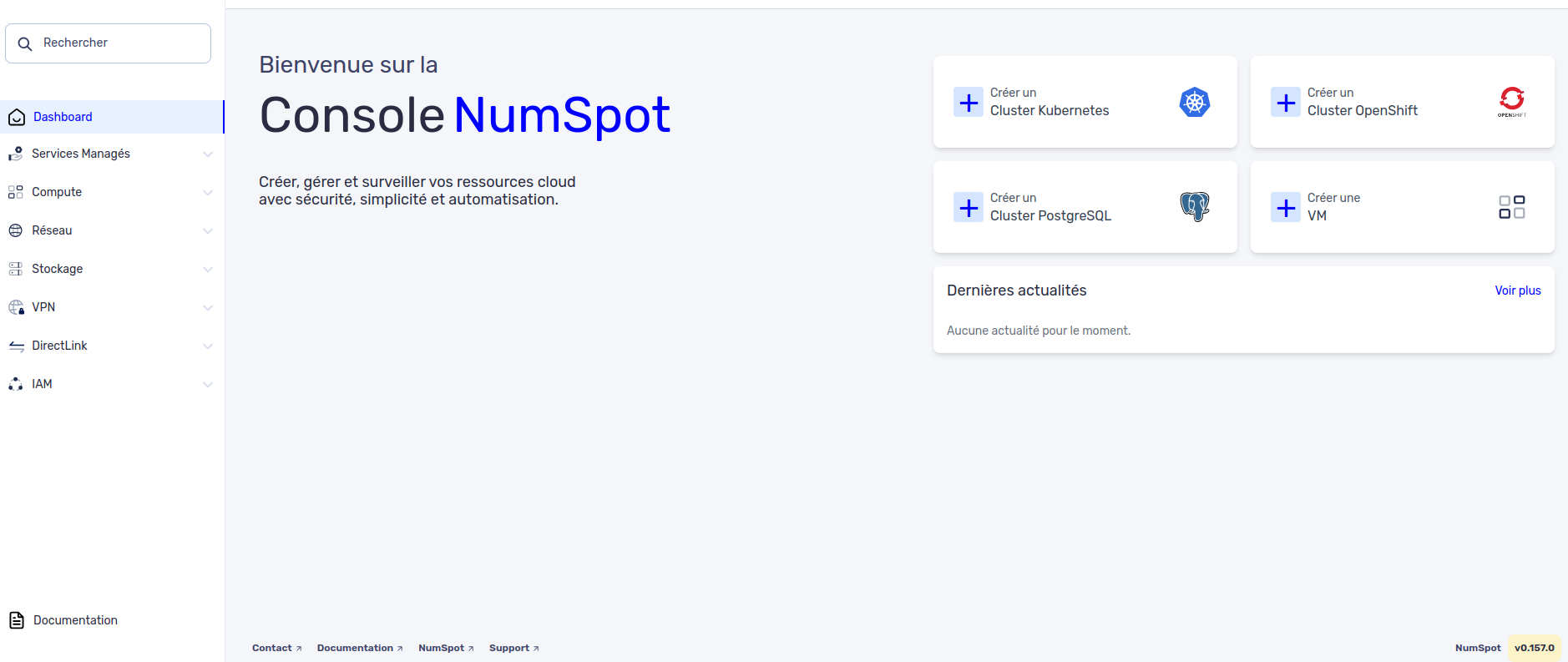
Your account is now activated and secured.