Create a volume
You can create volumes that you can attach to VM (Virtual Machine) created within the same Sub-region. volumes allow you to add storage capacity to a VM if the system volume has reached its maximum storage capacity, or to separate your data storage from the VM operating system files.
Permissions
This action requires the following IAM (Identity and Access Management) permissions:
- compute.blockStorage.create
- Console
- API
- Terraform
-
Log in to the Numspot console.
-
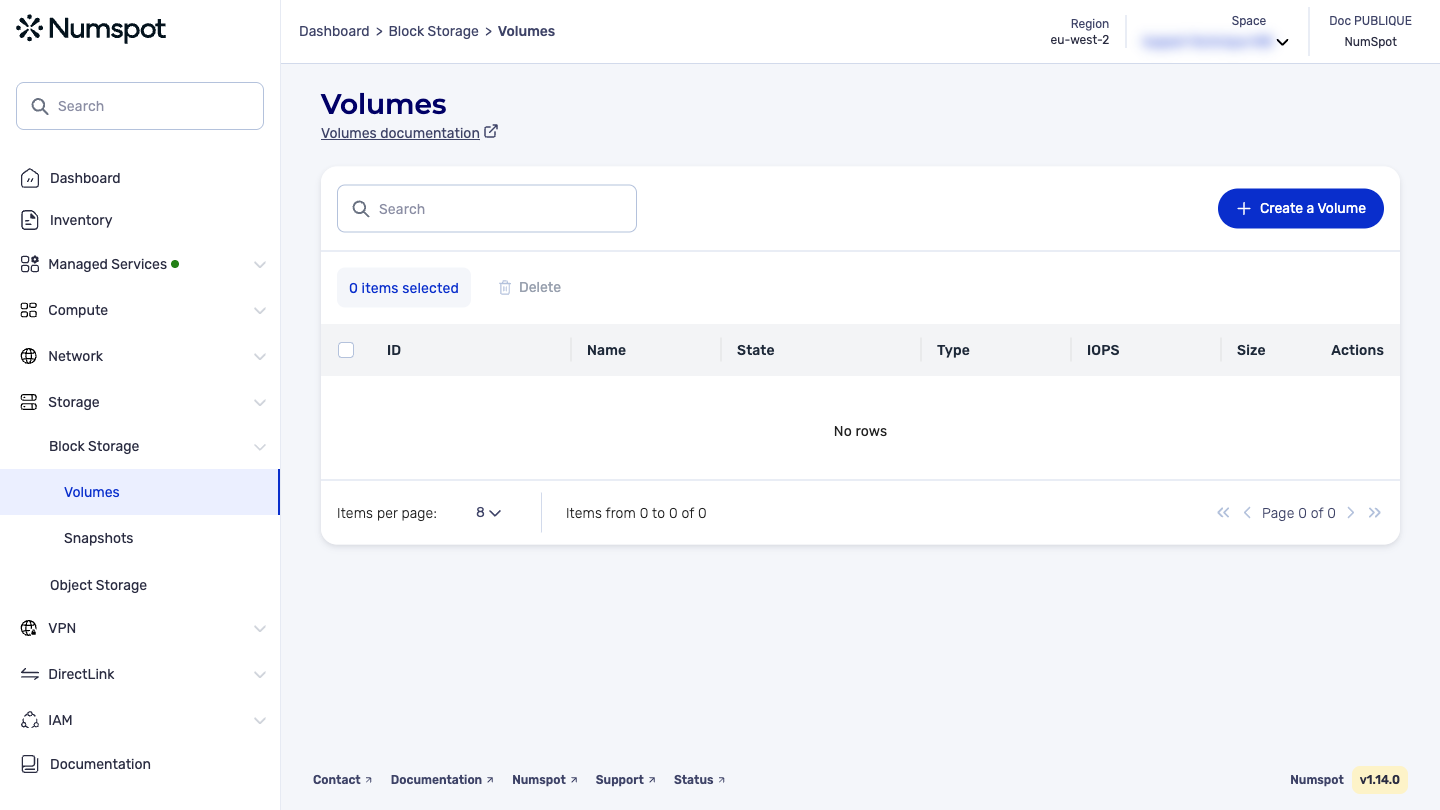
From the left-hand side menu, click Storage → Block Storage → Volumes.
-
Click Create a volume. The "Volume creation" page appears.
-
In the "Sub-region (Availability zone)" list, select the Sub-region in which you want to create the
volume. -
In the "Name" field, type a name for the
volume.infoThis action adds a Name tag of up to 255 characters. You can use any characters, including accented letters.
-
In the "Size" field, type the size of the
volume.warningThe minimum size allowed for a
volumeis:- 1 GiB for 'standard';
- 1 GiB for 'gp2';
- 4 GiB for 'io1'.
The maximum size allowed for a
volumeis 14901 GiB. -
In the "Type" list, select a
volumetype:standardfor a Magneticvolume;io1for an Enterprisevolume;gp2for a Performancevolume.
-
(io1 volumes only) In the "IOPS" field, type the number of IOPS (Input/Output Operations Per Second) for the
volumeor select it using the arrows.warningThe maximum number of IOPS allowed for io1
volumesis 13,000, with a maximum performance ratio of 300 IOPS per gibibyte. -
In the "Number" field, type the number of
volumesyou want to create. -
In the "Snapshot" list, leave "None" selected.
-
Click Create a volume. The
volumeis created.
The POST /compute/spaces/{spaceId}/volumes command allows you to create a block storage volume in a specified region. Block storage volumes can be attached to a VM in the same sub-region. You can create an empty volume or restore a volume from an existing snapshot.
You can create the following types of volumes: Enterprise (io1) for provisioned IOPS SSD volumes, Performance (gp2) for general-purpose SSD volumes, or Magnetic (standard) for magnetic volumes.
The Terraform documentation is available on the Numspot registry ↗.